What is Prompt Compass?
Prompt Compass is a prompt-engineering assistant for people who need AI instructions to work clearly and reliably. Paste in a rough prompt, a messy task, or a fragile instruction set, and it helps diagnose what is missing, improve the wording, target the right model or surface, and preflight the prompt before you use it. It can be used through the plugin, MCP/extension, or skill files below.
Claude Cowork Plugin
Best for Claude Cowork or Claude Code. This bundle includes the Prompt Compass MCP/extension and skill.
v0.1.0-beta.3
Download PluginClaude Desktop Extension
Best if you use Claude Desktop. This is the MCP connector installed through Settings → Extensions.
v0.1.0-beta.3
Download ExtensionSkill
A standalone skill Claude can read without the MCP connector. Useful on its own or alongside the plugin or extension.
v0.1.0-beta.3
Download Skill Download Skill ZipPick Your Path
Downloads are live for beta.3. Choose the plugin for Claude Cowork or Claude Code, the MCPB/Desktop Extension for Claude Desktop, or the standalone skill when tool access is unavailable.
| I want a quick prompt fix | Use the quick prompt fix prompt to repair a draft prompt without turning it into a full workshop. |
| I want guided improvement | Use guided improve when the prompt matters and the AI should ask bounded questions before rewriting. |
| I need to build from scratch | Use build from scratch when you know the outcome but need help shaping role, context, constraints, and output format. |
| I want to compare or preflight | Use compare or preflight flows when you need to test versions, catch missing requirements, or check readiness before using a prompt. |
| I need model or surface targeting | Use model/surface targeting when the prompt needs to work differently in Claude, Codex, ChatGPT, tool use, or structured-output workflows. |
You can install more than one. Start with the plugin, extension, or skill that matches your Claude surface, then use the path above to decide what to do after install.
Want your AI assistant to help install this? Use the AI-assisted install prompt. Using Codex? See the FAQ tab for technical-user guidance.
Your First Prompt
After install, copy one of these starters into your AI assistant.
Quick Prompt Fix
When to use: Best when you have a draft and want a safer, cleaner version fast.
Guided Improve
When to use: Best when the prompt matters and you want the AI to ask a few plain-language questions.
Build From Scratch
When to use: Best when you know the outcome but do not know how to ask the AI for it yet.

About the author
Jonathan Kyle Hobson is a UX researcher, product strategist, and AI tool builder with 10+ years of experience across design, storytelling, and emerging technology. He holds a master's degree in User Experience from Arizona State University. Kyle created Prompt Compass to help people turn rough intent, messy drafts, and fragile AI instructions into prompts that are clearer, safer, and easier to use, because good AI work depends on the quality of the request as much as the model behind it.
What Is Prompt Compass?
Prompt Compass is a local prompt-engineering assistant that helps turn rough AI instructions into prompts that are clearer, safer, and easier for a model to follow. It is built for the moment when you know what you want from an AI, but the prompt is messy, incomplete, too broad, or missing the details that would make the output reliable.
Instead of only rewriting the wording, Prompt Compass looks at the structure underneath the request: the goal, audience, context, constraints, role framing, output format, model target, and success test. It can diagnose what is weak, ask targeted clarifying questions, build a prompt from scratch, compare versions, preflight a prompt before use, and adapt instructions for different AI models or tool surfaces.
For non-technical users, it works like a guided editor for AI instructions. For technical users, it provides a structured local tool surface for routing, prompt repair, model targeting, personal prompt libraries, and repeatable prompt-quality checks.
How It's Built
Prompt Compass is distributed as a local MCP/extension, a Claude Cowork or Claude Code plugin, and a prompt-only skill. The MCP exposes tools that a host AI can call for routing, prompt analysis, diagnosis, rewriting, prompt building, preflight checks, comparison, model targeting, and personal prompt storage.
Under the hood, it combines a curated prompt-engineering knowledge base with deterministic workflow tools. The knowledge base includes frameworks, strategies, patterns, anti-patterns, techniques, terms, model profiles, templates, and examples. The workflow layer uses that material to return structured results instead of relying on the host model to improvise every step.
Prompt Compass also includes a personal overlay and prompt library so users can save their own methods, preferences, templates, and examples without changing the shared core. It runs locally and does not require a provider API key for the bundled prompt-engineering workflows.
What's Inside
Prompt Compass includes tools for overview, onboarding, prompt diagnosis, prompt improvement, from-scratch prompt building, prompt comparison, preflight checks, model targeting, prompt-library search, and personal prompt-overlay storage.
The tool inventory lives here so people can understand the surface without turning the Get Started tab into a reference manual. Product-specific examples and release notes stay in their own tabs and GitHub release pages.
How I Use It
I use Prompt Compass when an idea is valuable but the instruction is still too messy for an AI to execute well. That might be a voice memo, a rough feature request, a draft prompt, a planning note, or a long context dump where the real ask is buried in the middle.
For fast work, I use quick improve mode to tighten the prompt and add the missing output contract. For important work, I use guided mode so the AI has to ask clarifying questions before rewriting. That human-in-the-loop step is often where the prompt gets meaningfully better, because it surfaces decisions the model could not safely infer on its own.
I use Prompt Compass most with Claude and Codex. With Claude, it helps turn fuzzy intent into better conversational instructions. With Codex, it helps turn broad implementation ideas into clearer developer-facing specs, acceptance criteria, and execution constraints.
Frequently Asked Questions
Quick answers about what Prompt Compass does, how the files differ, and what to expect during install.
What is prompting / prompt engineering?
Prompting is the practice of giving an AI clear instructions, context, examples, constraints, and success criteria. Prompt engineering is the more deliberate version: shaping those instructions so the model understands the task and produces a useful result.
What does Prompt Compass do? What is it for?
Prompt Compass helps diagnose weak prompts, improve existing prompts, build new prompts from intent, compare prompt versions, and check whether a prompt is ready for the model or surface where it will run.
What is an MCP connector or extension?
MCP means Model Context Protocol. In this context, Claude may call the local tool connection an MCP, connector, or extension. Prompt Compass's extension is the MCP connector: it gives Claude tools plus bundled prompt-engineering resources. Learn more about MCPs.
What is the difference between the plugin, extension, and skill?
Plugin zip: the Claude Cowork or Claude Code bundle. It includes the MCP/extension and skill. Extension file: the Claude Desktop MCP connector, which gives Claude tools and bundled resources so it can do more with fewer tokens. Skill: the prompt-only alternative Claude can read without the MCP, though it may use more context. You can install more than one.
Does this work in Codex?
Yes. Prompt Compass can work with Codex because Codex can use local MCPs, skills, and plugins. This page does not provide a one-click Codex install path; technical Codex users can use the source zip or the AI-assisted install prompt in Advanced.
Is Prompt Compass safe to install?
Downloading anything from the internet carries real risk: malicious code, data collection, hidden scripts. Prompt Compass is designed to reduce that surface area: it runs locally on your machine, requires no API key, bundles its own files, and does no background scanning. That said, no third-party tool is zero risk. Before installing, you're encouraged to review the source files or have a trusted technical contact look them over. Claude's warning is the standard prompt it shows for all locally shared third-party plugins, not a flag specific to this tool. Learn more about MCP risks.
Do I need a GitHub account?
No. The download buttons go directly to the files. GitHub is only where the files are hosted.
Install Guide
Choose the install path for the Claude surface you use. These screenshots show the tested UI. If your app does not show this path, stop and use the diagnostic prompt instead of improvising.
Tested Claude Surfaces
The screenshots below reflect the Claude Code, Claude Cowork, and Claude Desktop surfaces available during testing. Claude's install UI can differ by platform, account, and version. Local MCP/plugin and Desktop extension installs are not claimed for Claude.ai in a web browser.
Before Manual Config Edits
Do not hand-edit Claude config, or let an assistant rewrite it, unless it first backs up the file, reads the existing server names, merges only prompt-compass, writes UTF-8 without a BOM, and verifies that no existing MCPs disappeared.
Claude Cowork Plugin
- Download
prompt-compass-plugin.zip. - Open Claude Cowork or Claude Code.
- Click Customize in the left sidebar.
- Under Personal Plugins, click the + button.
- Hover over Create Plugin, then click Upload Plugin.
- Drag the zip file into the upload area.
- Use
prompt_compass_overviewor one of the first prompts on the Get Started tab.
If you only see Skills and Connectors, and Connectors only accepts a remote MCP URL, stop. That is not the plugin upload path.
-
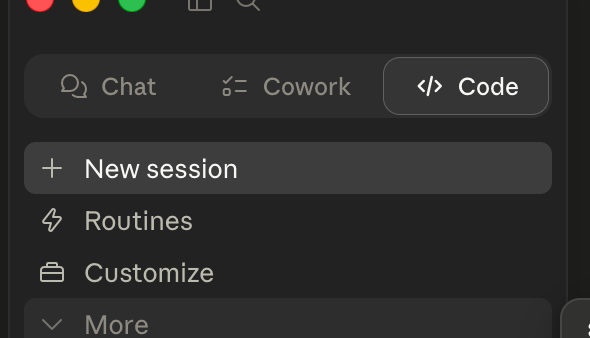
Step 1: Open Claude Code or Claude Cowork. -
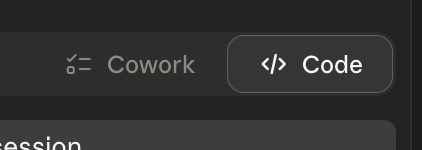
Step 2: Open Customize from the left sidebar. -
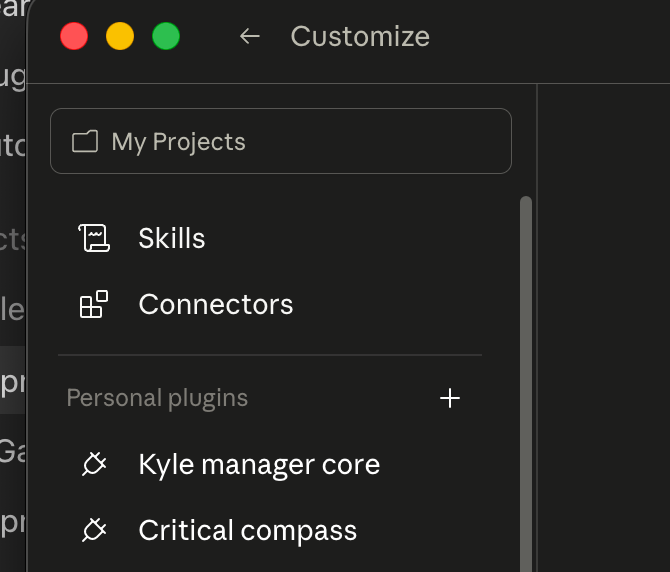
Step 3: Confirm you can see Personal Plugins. -
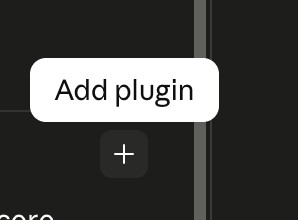
Step 4: Hover over the plus button until Add Plugin appears. -
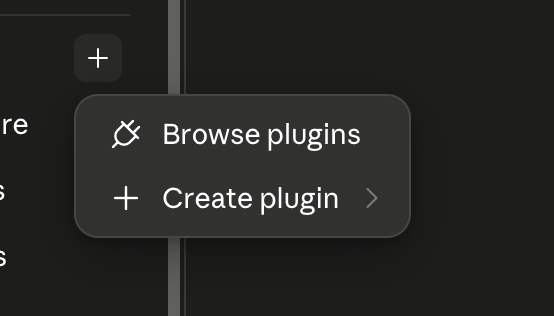
Step 5: Click the plus button to open the plugin menu. -
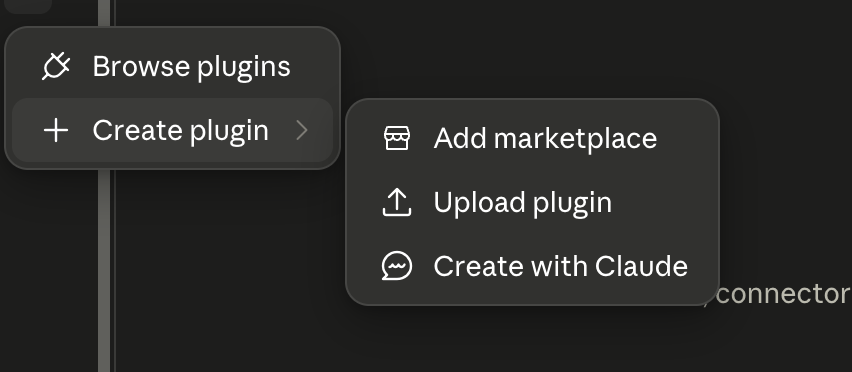
Step 6: Choose Create Plugin, then Upload Plugin. -
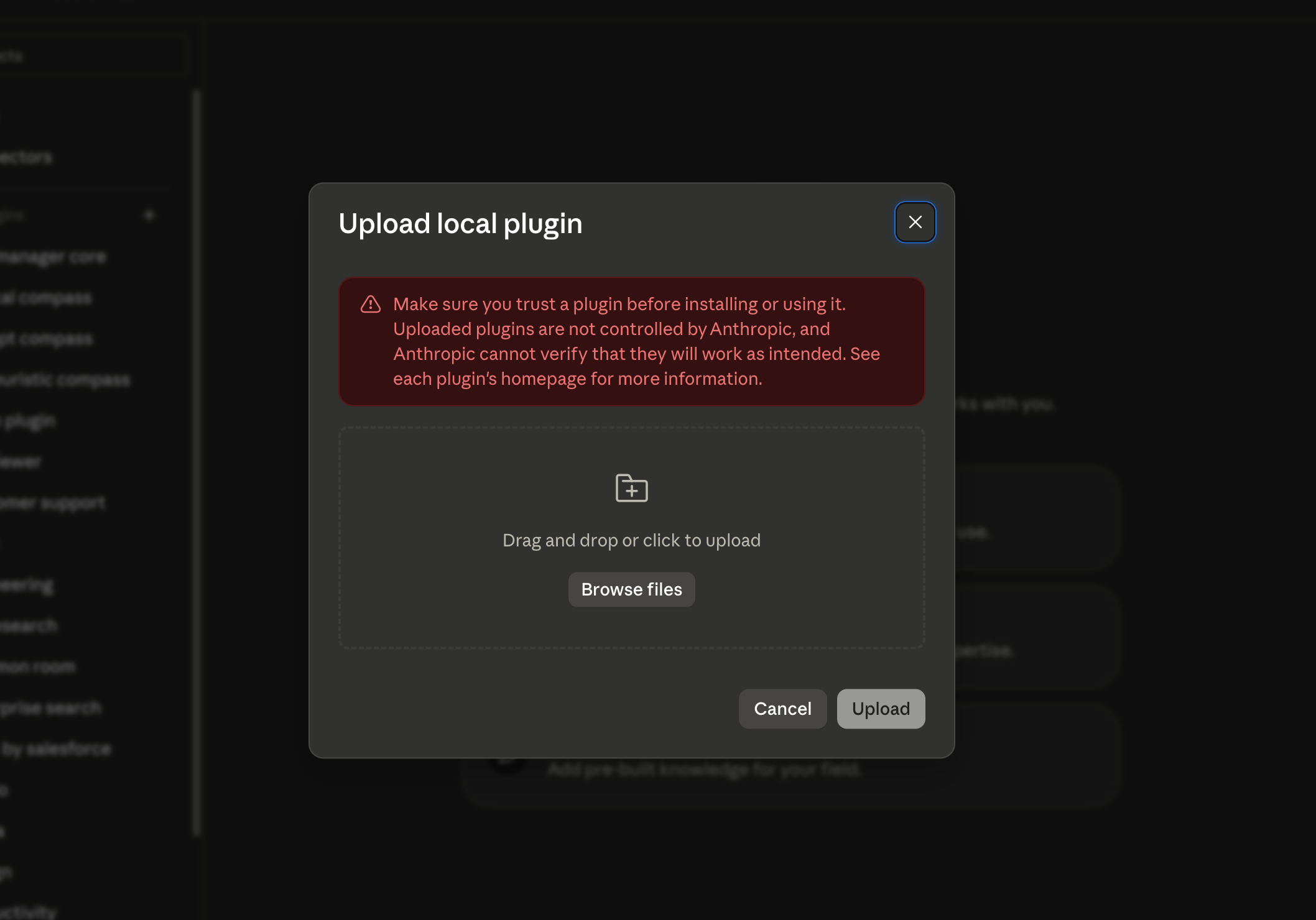
Step 7: Choose the local upload option. -
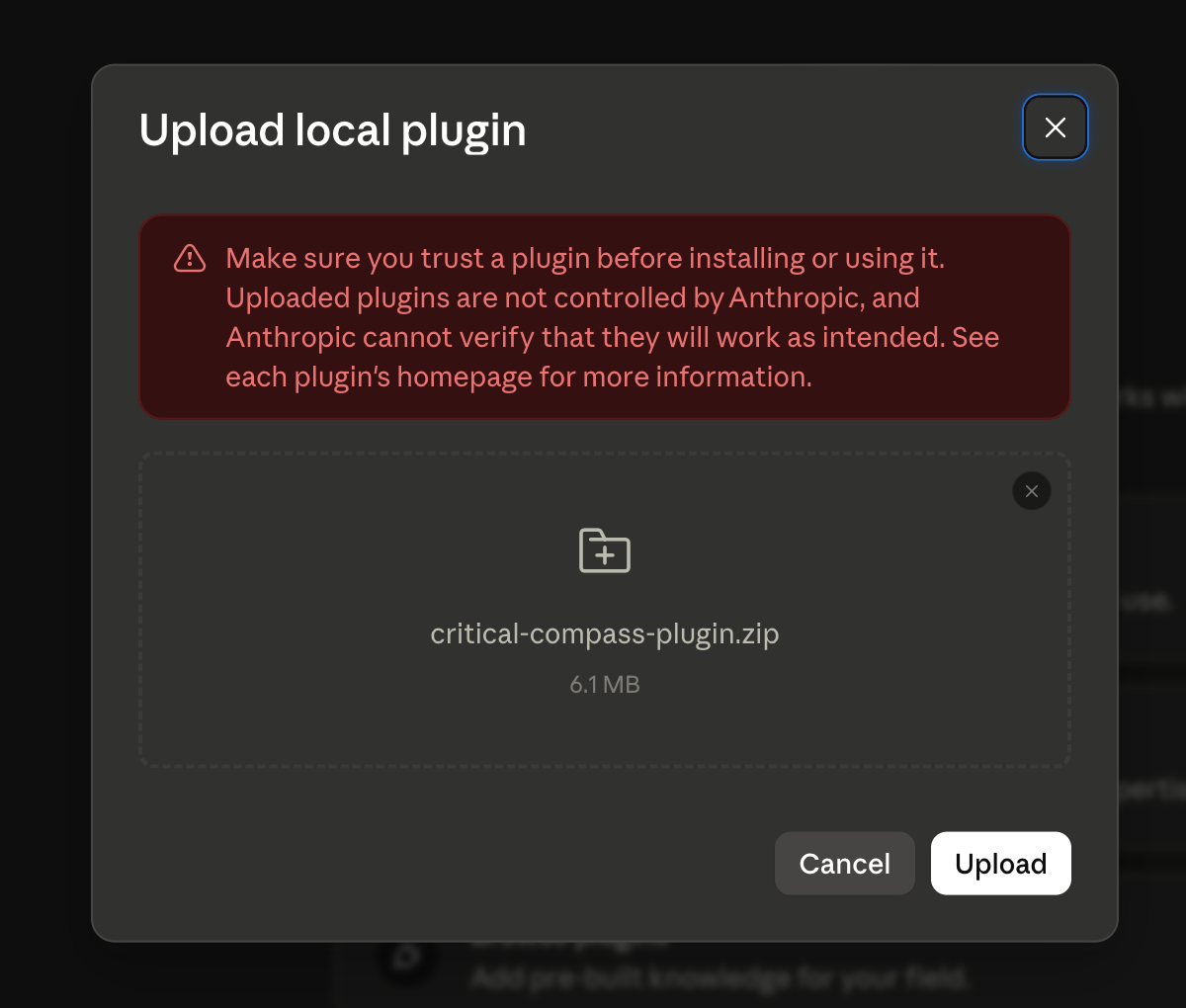
Step 8: Drag in prompt-compass-plugin.zip. -
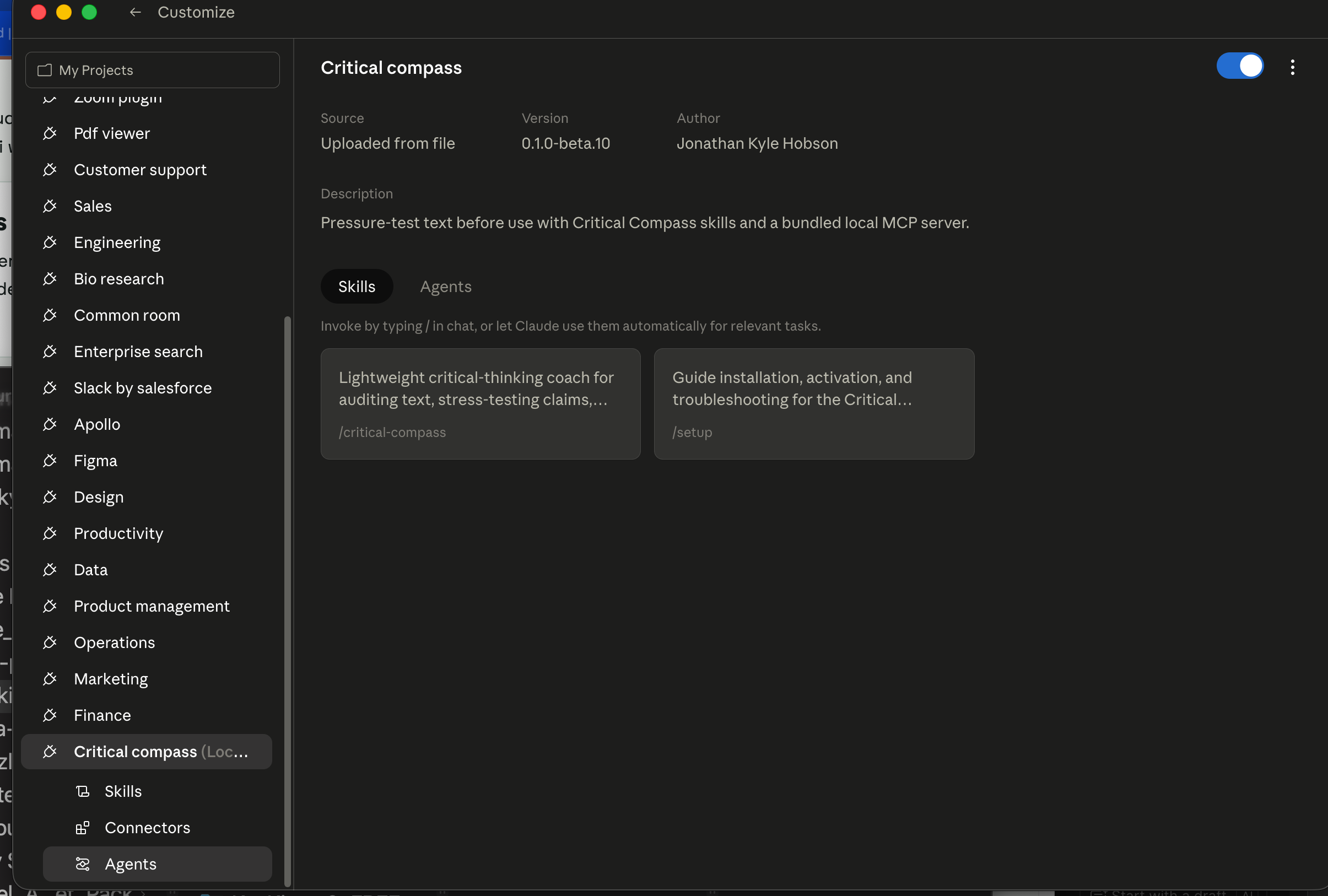
Step 9: Confirm Prompt Compass appears as installed.
Claude Desktop Extension
- Download
prompt-compass-0.1.0.mcpb. - Open the Claude Desktop app.
- Go to Settings → Extensions.
- Drag the downloaded file into the Extensions panel.
- Approve the standard local-extension warning.
- Ask Claude to use Prompt Compass for a prompt improvement or preflight.
If your Claude Desktop build does not show Settings → Extensions, do not hand-edit config as a beginner workaround. Use the diagnostic prompt.
-
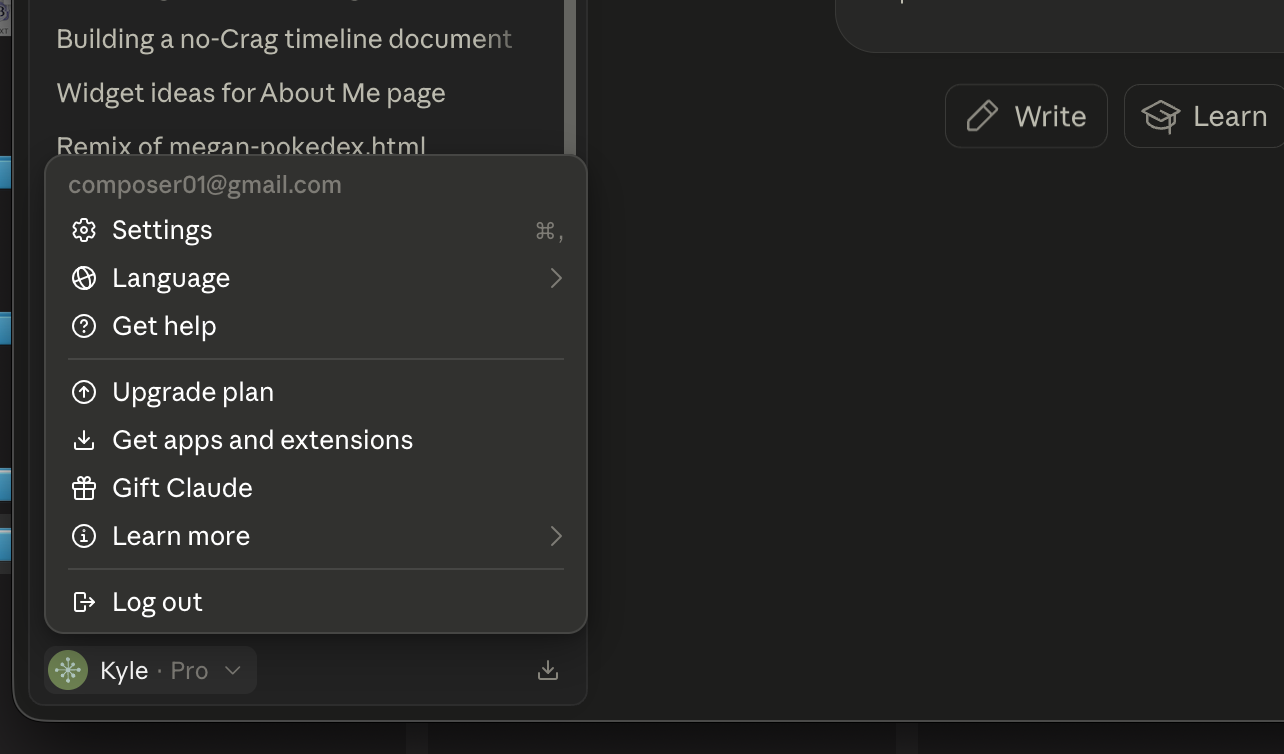
Step 1: Download the Prompt Compass .mcpb file. -
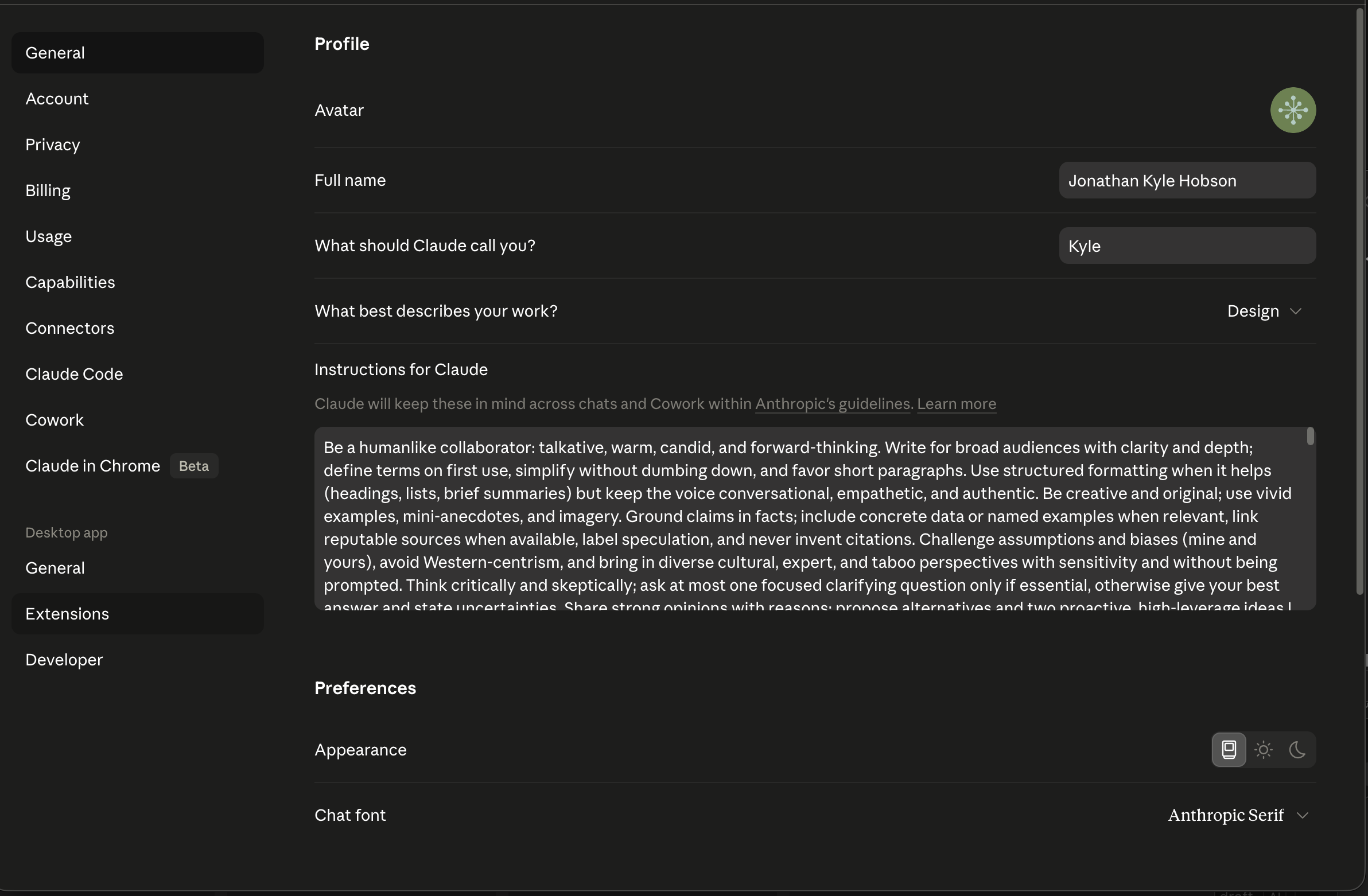
Step 2: Open Claude Desktop settings. -
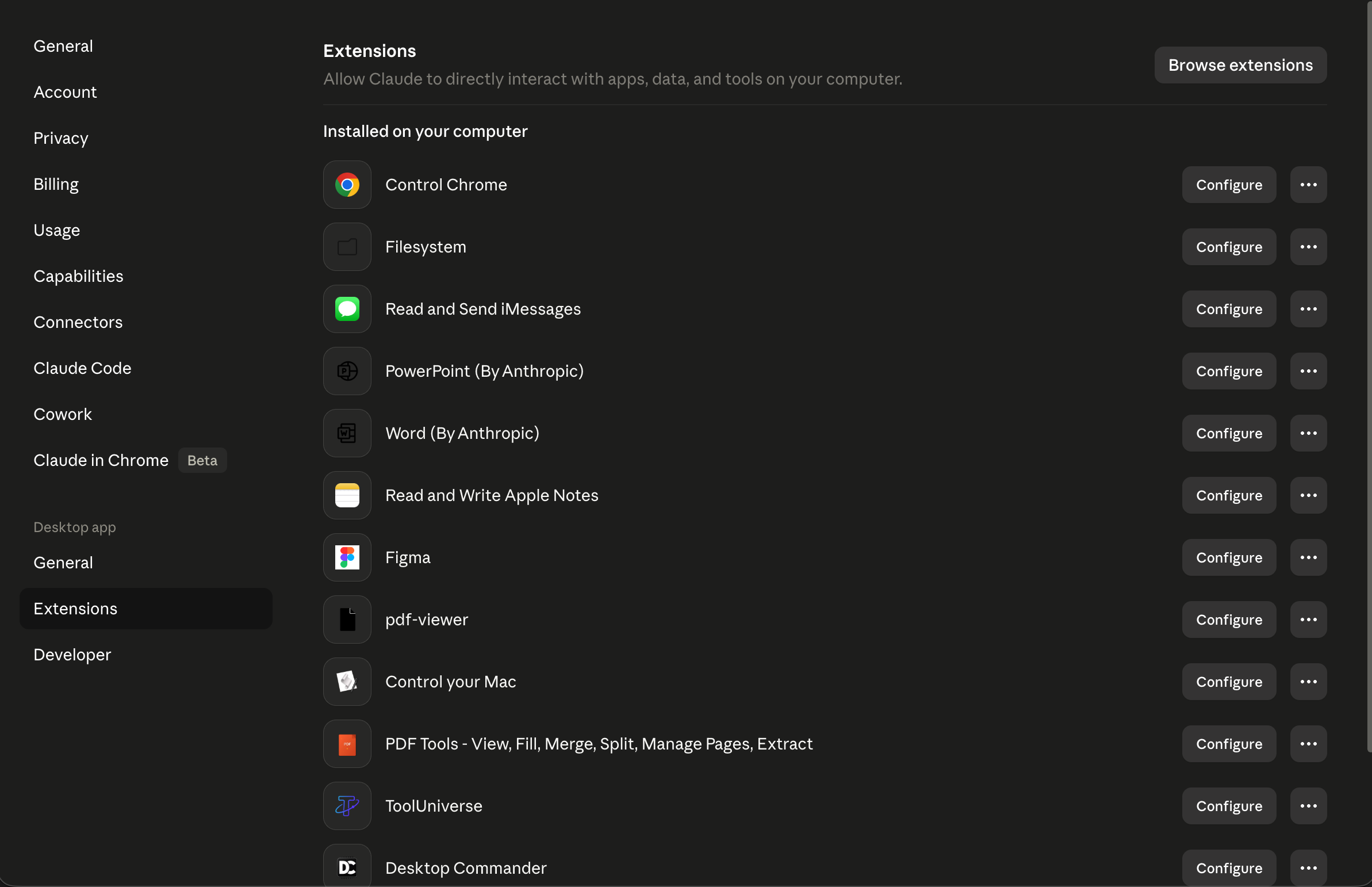
Step 3: Open the Extensions area if your build has it. -
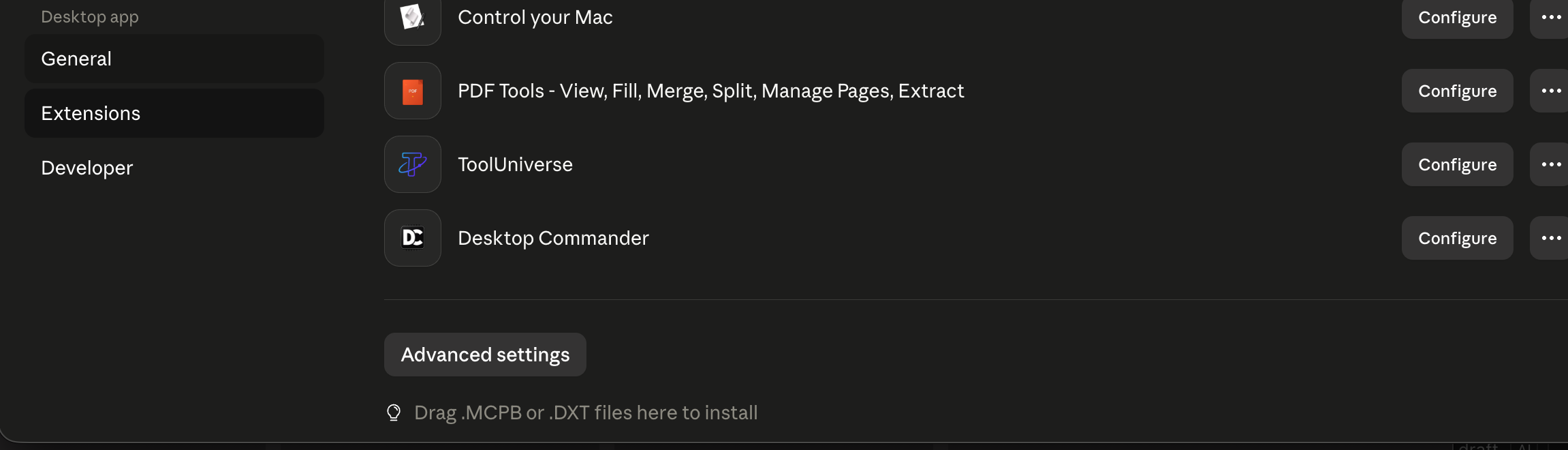
Step 4: Drag the .mcpb file into the Extensions panel. -
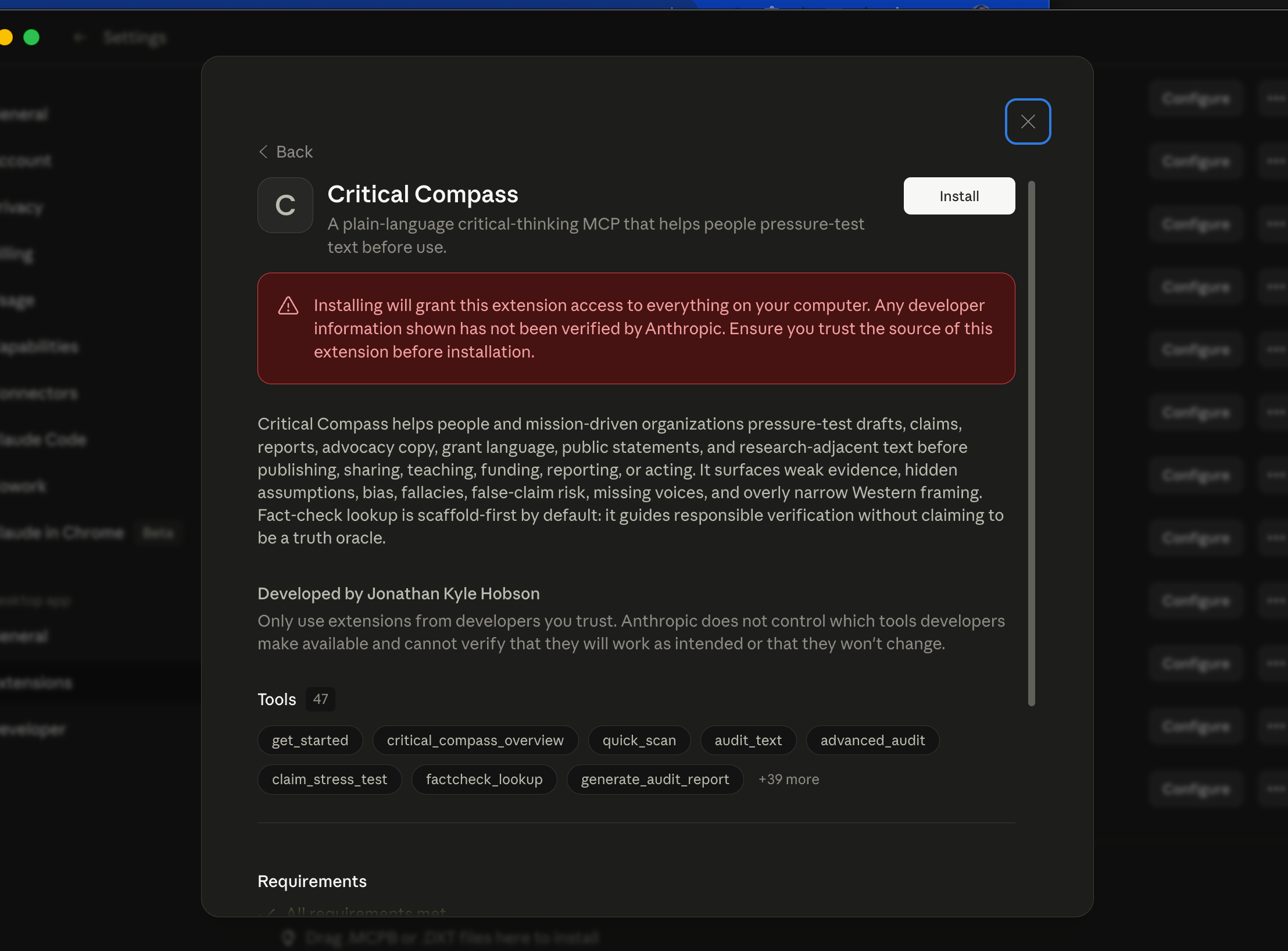
Step 5: Confirm the extension is installed.
Skill File or Skill Zip
- Download
prompt-compass.skillorskill.zip. - Open Claude or Claude Code.
- Go to Skills, then click the + button.
- Hover over Create Skill, then click Upload Skill.
- Drag in your downloaded file.
- Use this on its own, or install it alongside the plugin or extension when you want the prompt-only version available too.
Use the skill when the MCP/plugin path is unavailable, or keep it as a prompt-only fallback alongside the tool connection.
-
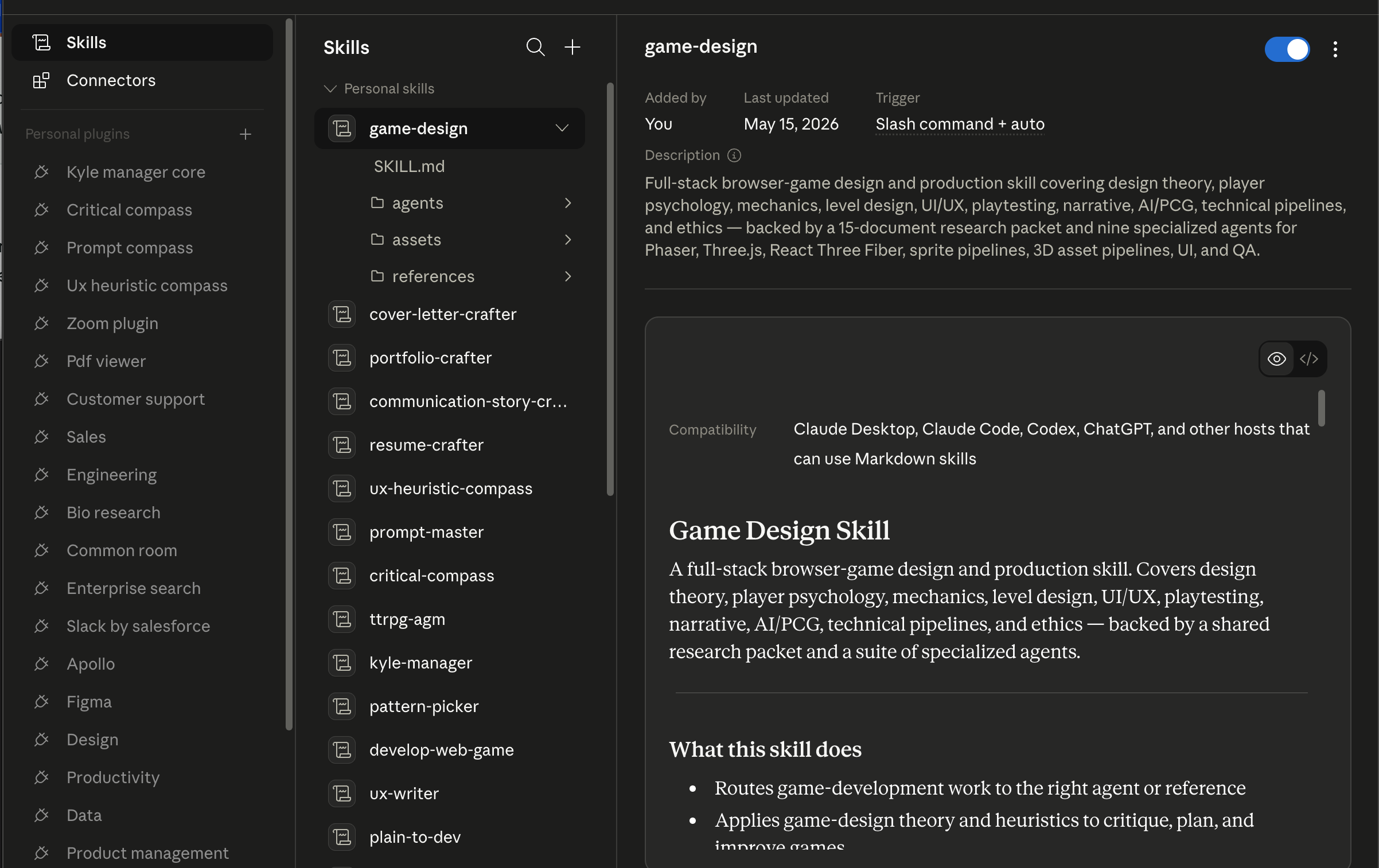
Step 1: Open the Skills area. -
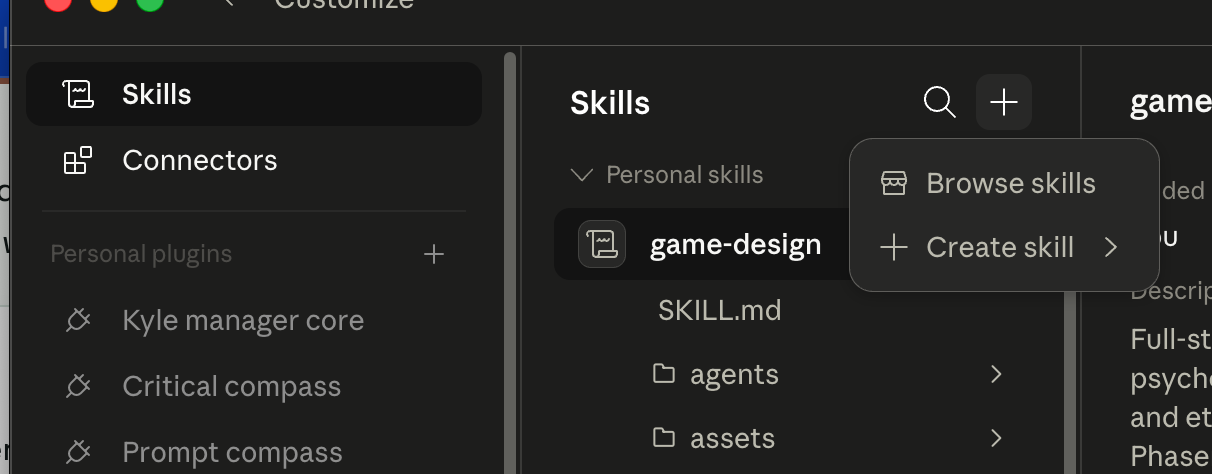
Step 2: Click the plus button. -
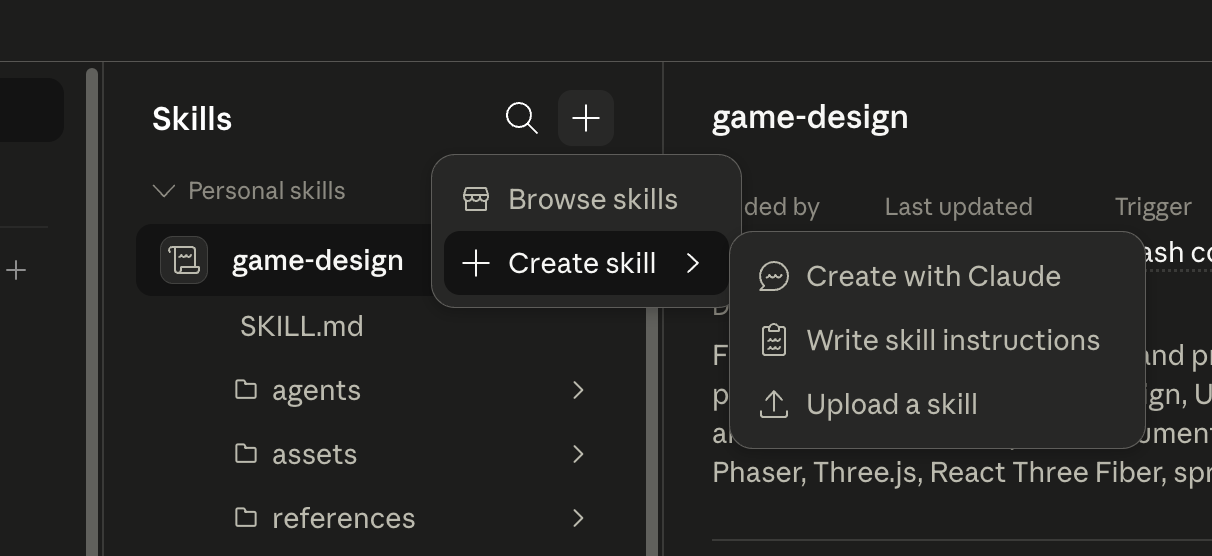
Step 3: Choose Create Skill, then Upload Skill. -
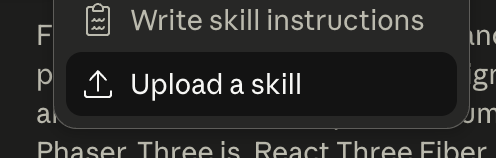
Step 4: Select prompt-compass.skill or skill.zip. -
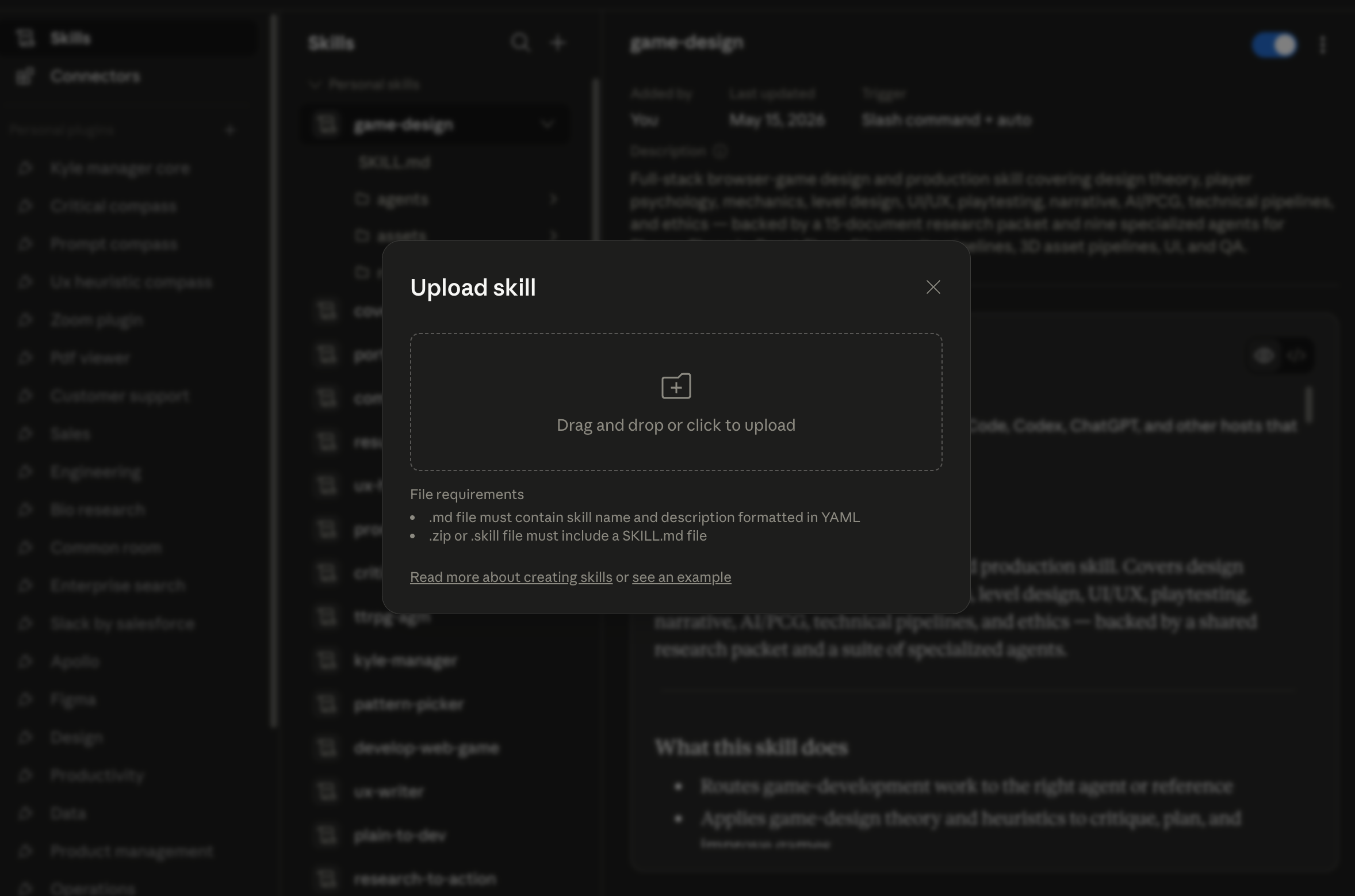
Step 5: Confirm Prompt Compass is available as a skill.
After Install, Verify
- Fully restart Claude if the tool list does not refresh.
- Start a new chat.
- Ask for
get_startedorprompt_compass_overview. - If you had other MCPs installed before, confirm they still appear.
If the Expected UI Is Missing
Do not improvise in Connectors unless that surface clearly accepts the exact file type you downloaded. Use the skill/reference path or the diagnostic prompt instead.
Back Out Safely
Restore the latest config backup or remove only the prompt-compass entry from mcpServers. Never reset the whole config to fix one install.
If Install Fails
Use the diagnostic prompt in the Advanced tab before editing any files manually.
Prompt Compass in Action — Real Session Output
The prompt that started it:
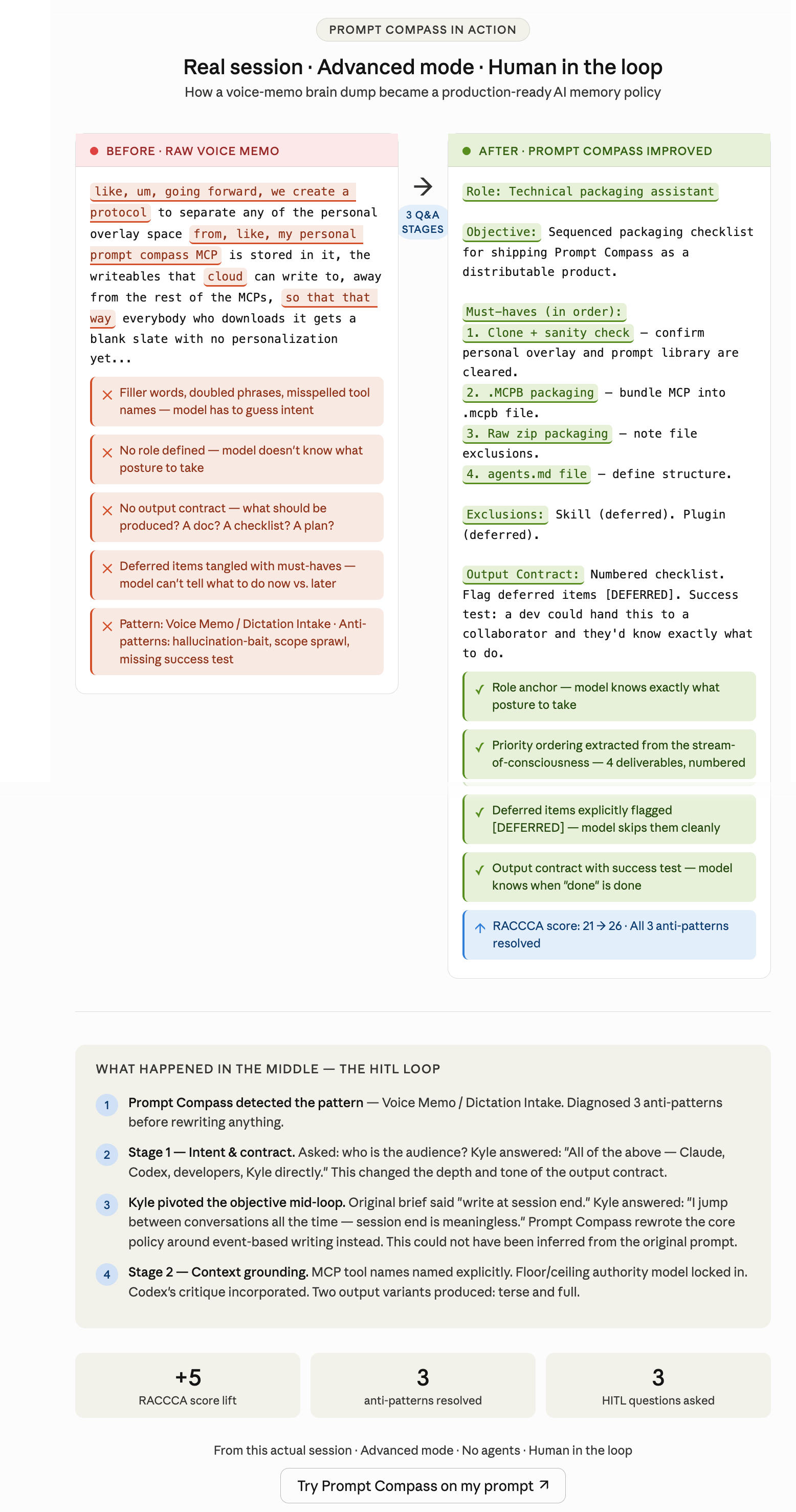
“like, um, going forward, we create a protocol to separate any of the personal overlay space from, like, my personal prompt compass MCP is stored in it...”
A voice memo. No structure. Misspelled tool names. Five deferred decisions tangled with three urgent ones. The kind of thing you dictate at 11pm when the idea is flowing but the words aren't cooperating.
What Prompt Compass did: It didn't just clean up the grammar. It diagnosed the prompt first — spotted three active anti-patterns (hallucination-bait, scope sprawl, missing success test), named the pattern (Voice Memo / Dictation Intake), then asked three targeted questions before writing a single word of the improved version.
The third question is where it got interesting. Asked what the single most important behavior should be, the answer completely reversed the original intent — from “write notes at session end” to “write immediately when a durable event occurs, because session end is a fiction for how I actually work.” That pivot couldn't have been inferred. It required a human in the loop.
The output: a clean two-variant memory policy — one terse version for lean AI profiles, one full version for rich project instructions — with named tool calls, a floor/ceiling authority model, and a success test a developer could hand to a collaborator cold.
RACCCA score lifted from 21 to 26. Three anti-patterns resolved. One policy that will govern how two AI systems handle memory for the foreseeable future.
That's what Prompt Compass is for.
Before / After Teaching Artifact
This curated artifact shows the transformation in a tighter teaching format: raw dictation on one side, Prompt Compass's improved prompt structure on the other, and the human-in-the-loop decisions that changed the final output.
Real Claude Conversation Sample
This snapshot is taken from the real shared Claude conversation. It shows Prompt Compass operating across the actual loop: rough prompt, anti-pattern diagnosis, advanced questions, improved prompt, and change rationale.
The full conversation is available for people who want to inspect more examples and iterations, but the preview below is the intended first look.

Advanced
This section is for IT reviewers, security-conscious users, and anyone troubleshooting installation.
Download source files
Use this zip if you want to inspect, modify, or rebuild Prompt Compass yourself. It excludes private state, generated release files, env files, caches, and machine-specific artifacts.
Advanced: Verify Download
These SHA-256 checksums help technical reviewers confirm that downloaded files match this release.
checksums.txt | acba76096bf96ba01a4493300af208e8db8f085202db31e27e143b29a21a7945 |
prompt-compass-0.1.0.mcpb | 10098681c386fbc8ed4865660ee4b3919ec55553aacffb142d1a68195d9cd057 |
prompt-compass-plugin.zip | 7522ba7ff823a7788f19914b6e2b74da92b45b9ae2ae430d5e17be008a75fd31 |
prompt-compass-source.zip | 2145f40877a3770d325273e6a3905f9afe869049f0141626a311ef25d2a03d92 |
prompt-compass.skill | 8e03e23b46ccf6606b6032470a989adf95cfbde22a37b4515bad6f9beb5780ef |
skill.zip | 213fe8fd0abc7bc72654ef8d001281725e121826d5953b4552a12bb395ad6b19 |
AI-Assisted Install Prompt
Use this with a coding assistant that can inspect downloads, check your computer setup, and edit local config files. The local MCP source install is the most reliable automated path; for plugin, extension, and skill files, the assistant should determine the current add/install method and guide any user steps it cannot safely complete.
Diagnostics Prompt
If installation fails, copy this prompt into Claude, Claude Code, or Codex and attach the file you tried to install.